Product
The equipment families the platform recognizes
Switch, router, optical drawer, UPS, server, patch panel: nine equipment types, grouped into five families. What each family covers, and how it appears in a survey.
Contents
A telecom rack mixes very different equipment: access switches, optical drawers, transmission chassis, UPS units, servers, patch panels. For a photo-based inventory to be useful, you first need to know how to sort what you see. That is the role of families.
Each device spotted in a photo gets a type and a family. The type describes the object (a switch, an optical drawer); the family groups it with its functional neighbors (network, fiber and transmission). This article presents the nine recognized types, the five families, and how they appear in the platform.
Five families, nine types
The table below summarizes the organization. Families serve as a visual reference throughout the platform: on rack diagrams, in lists and in site reports, each family has its color.
| Type | Family | What you see on the front |
|---|---|---|
| Switch | Network | 24 to 48 copper ports, SFP cages |
| Router | Network | Chassis, line cards, management ports |
| Firewall | Network | 1U front, display, LEDs |
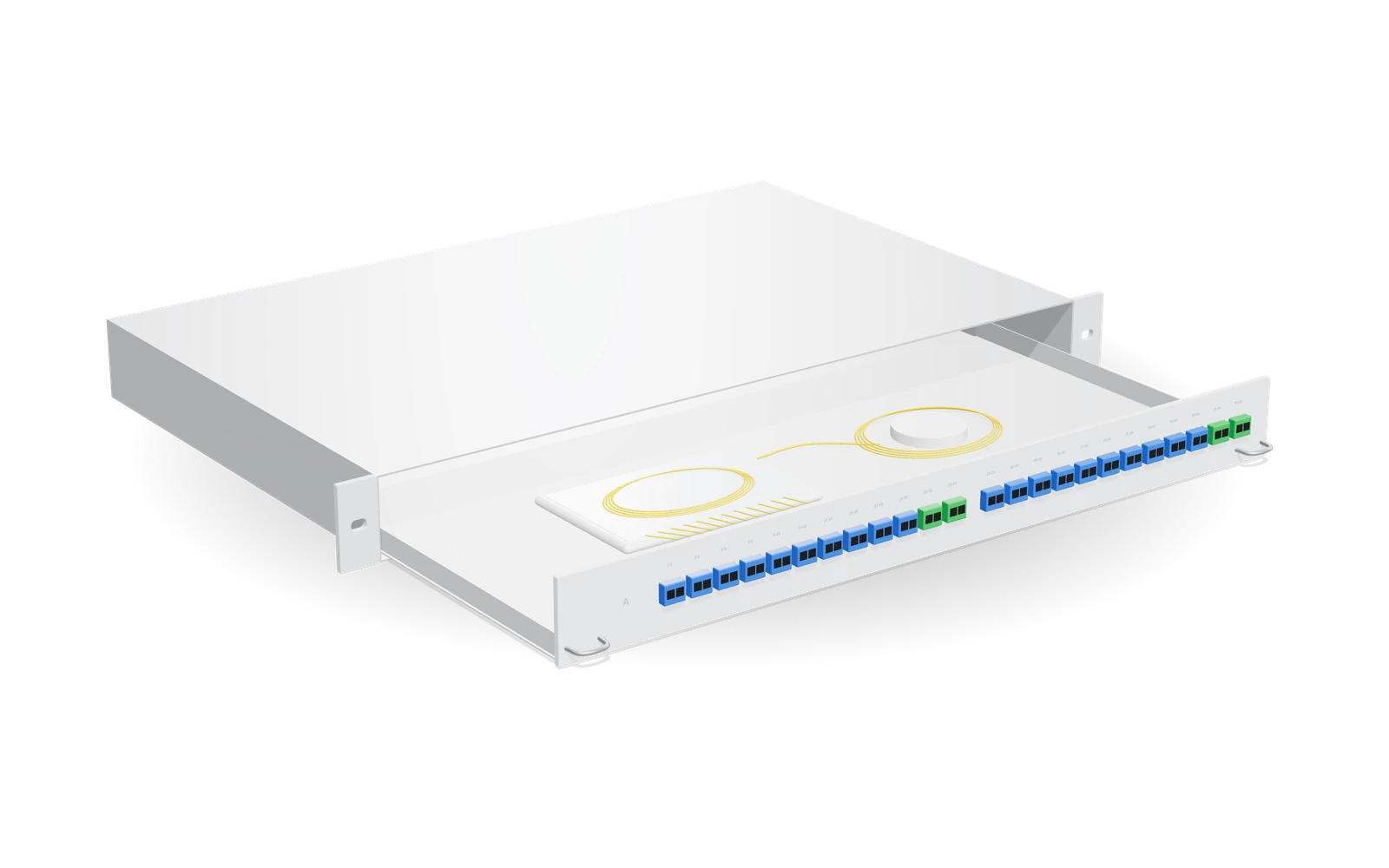
| ODF / optical drawer | Fiber and transmission | Sliding drawer, LC or SC adapters |
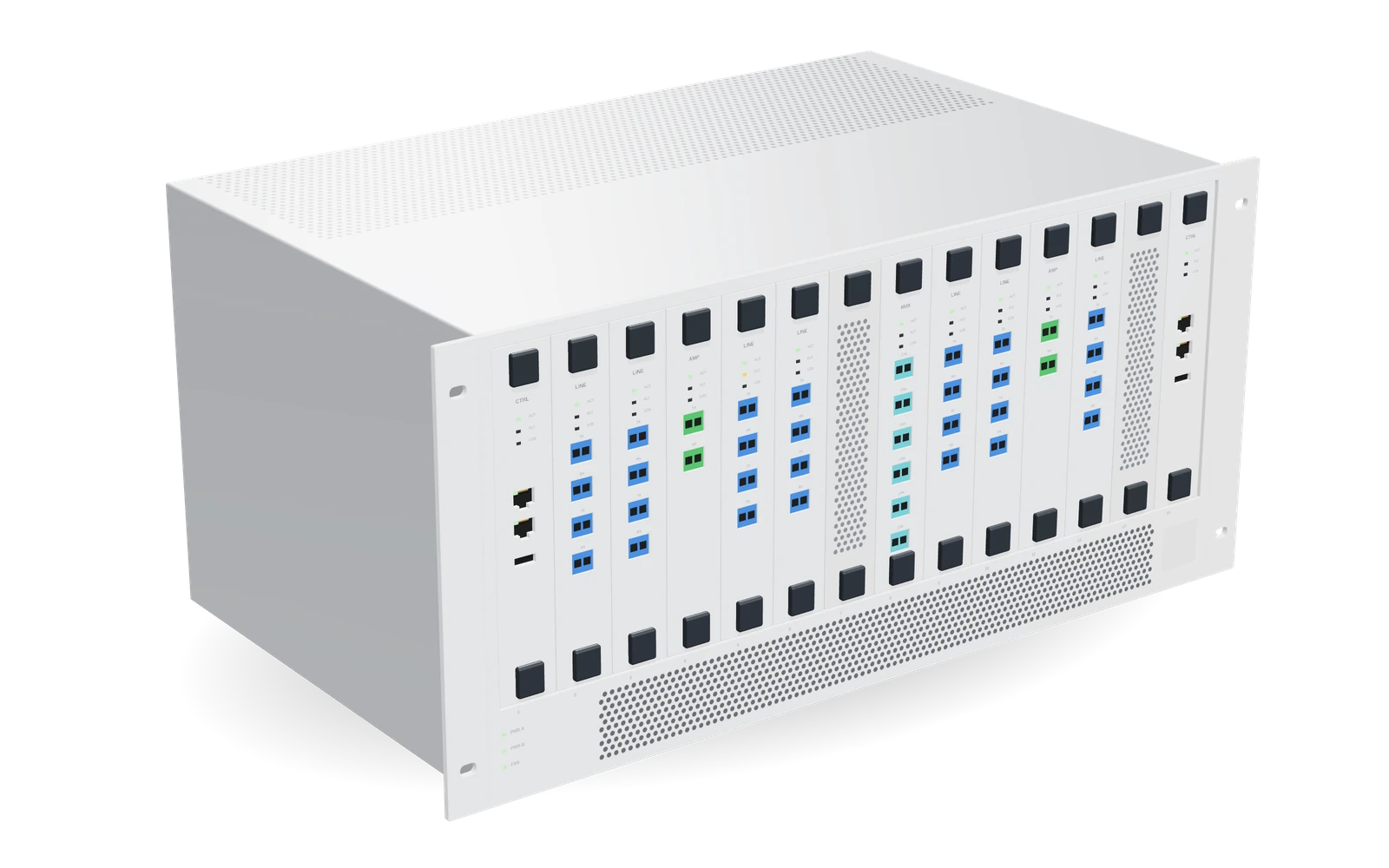
| Transmission (SDH/DWDM) | Fiber and transmission | Chassis with vertical cards |
| UPS / PDU | Power | Rack-mounted UPS, power distribution strip |
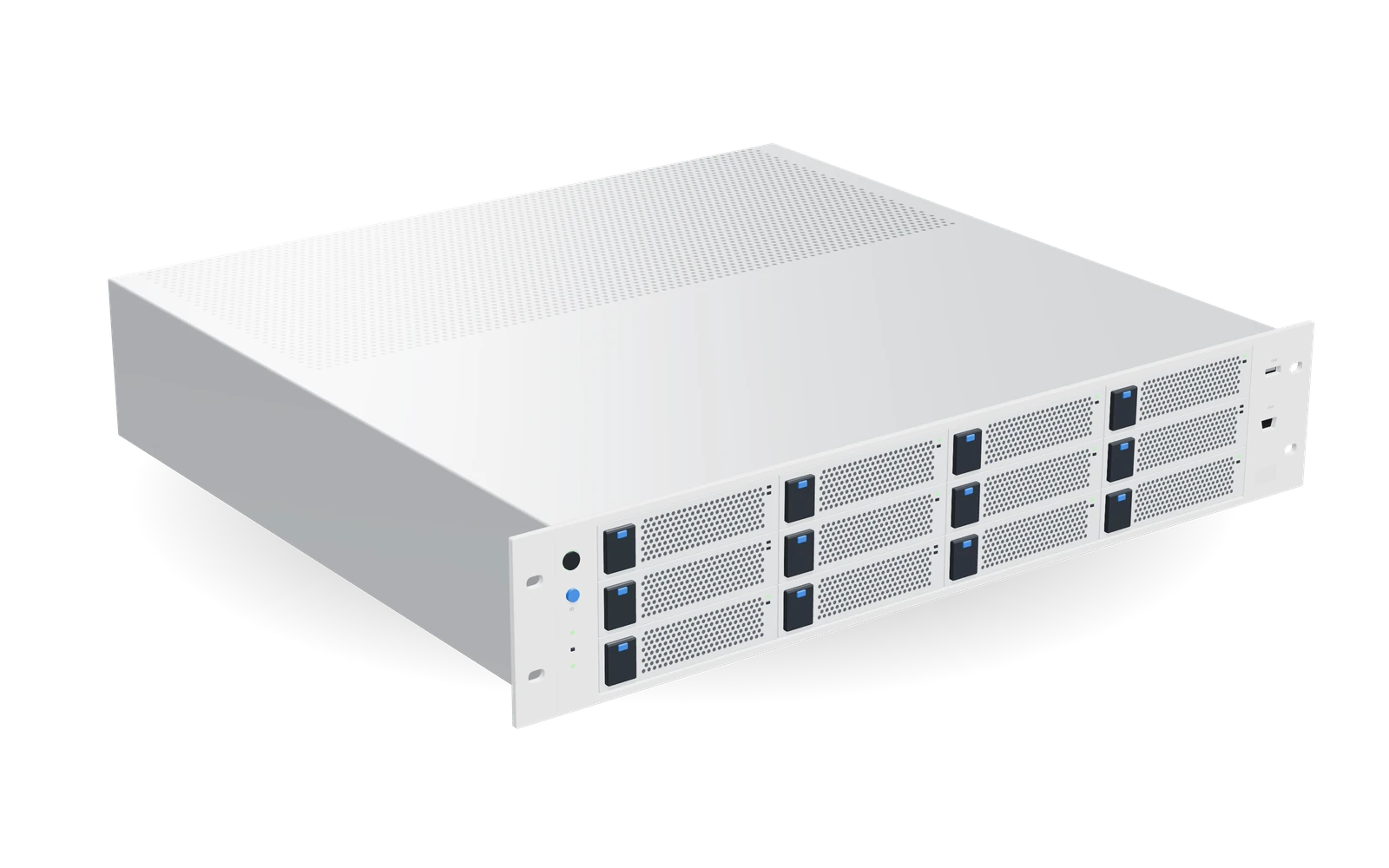
| Server | Server | 1U to 4U, drive bays |
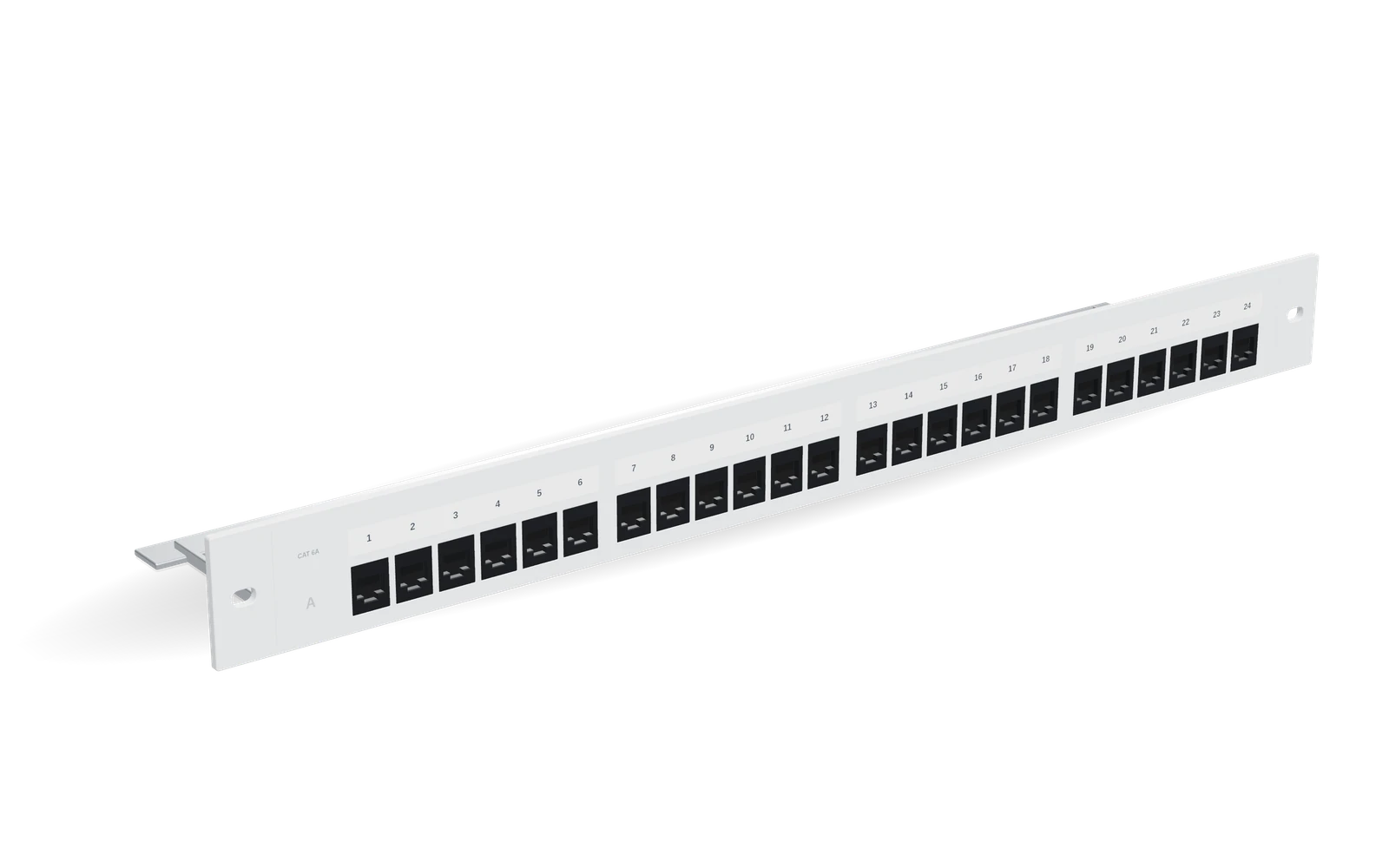
| Patch panel | Patching and other | Copper panel, markings, labels |
| Ventilation | Patching and other | Fan tray, cable manager |
Network: switches, routers and firewalls
The network family groups the active equipment that carries and filters traffic. On the front, they can be recognized by their rows of ports, their LEDs and, for routers, their line cards.
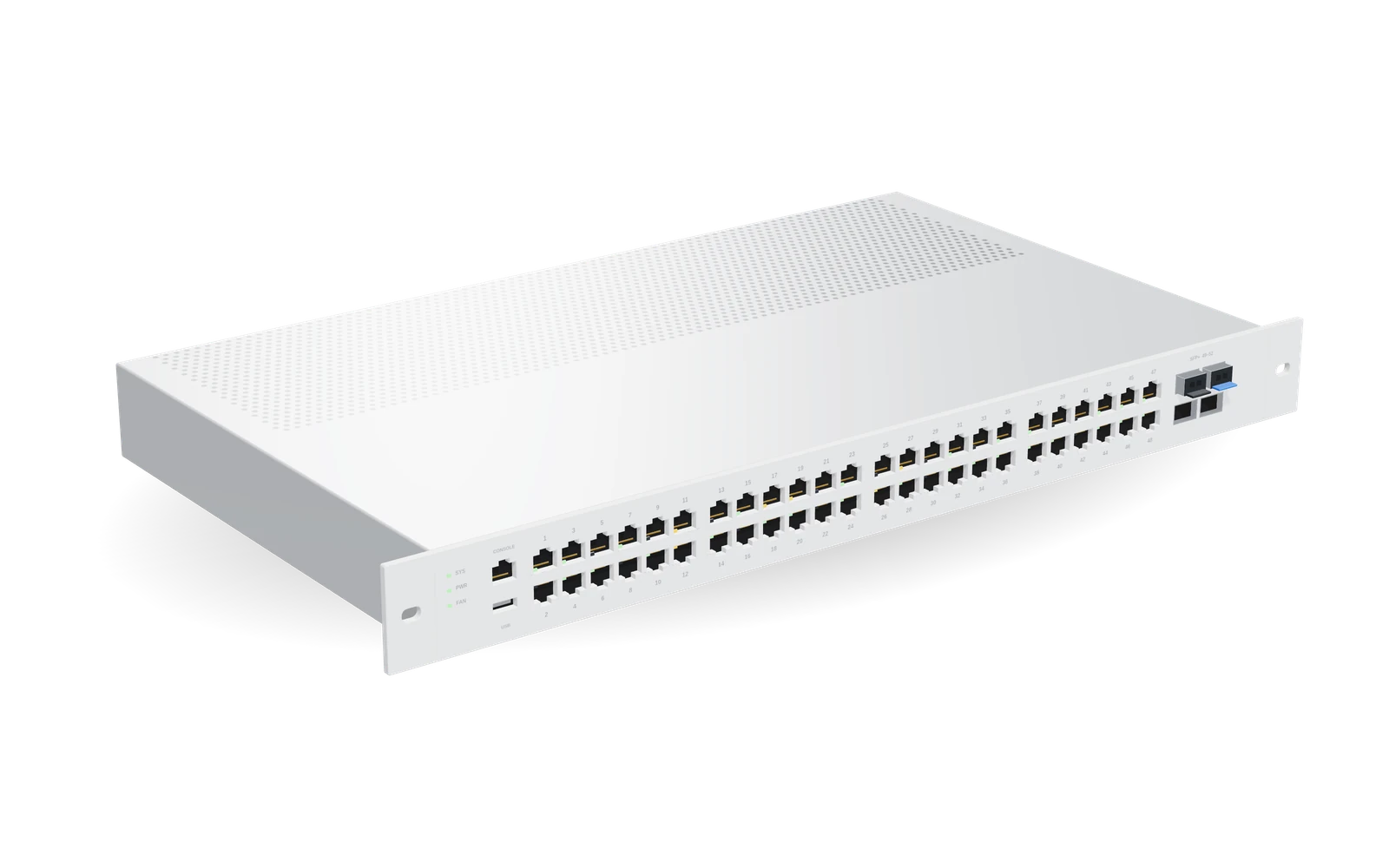
The switch is often the most common device in a rack. The router comes in taller chassis, with interchangeable cards. Finally, the firewallusually takes up 1U, with a plain front, sometimes a small display.
Between these three types, the visual boundary is not always clear: a small router can look like a switch. In that case, the family remains correct (network) even if the type deserves a check. This is one of the cases where the line may be marked “to check”.
Fiber and transmission: optical drawers and chassis
This family covers passive optical infrastructure and transmission equipment.
The optical drawer, or ODF, is a sliding drawer that receives the fibers and their adapters. On the front, you see rows of connectors, marking labels, sometimes splice cassettes. The transmission chassis (SDH, DWDM) can be recognized by its vertical cards: line cards, amplifiers, multiplexers.
Power, servers, patching
Power
Rack-mounted UPS units and electrical power distribution strips (PDU) make up the power family. UPS units generally occupy the bottom of the rack. Vertical power strips, mounted on the sides, do not occupy any U: on the rack diagram, they appear separately, as 0 U devices.
Servers
Rack-mounted Servers, from 1U to 4U, can be recognized by their rows of drives on the front. They are often numerous and visually similar to one another: their U position is then the most useful information in the survey.
Patching and other
Rack-mounted patch panels and fan trays or cable managers complete the inventory. They do not carry traffic, but they occupy U: ignoring them would distort the rack’s remaining capacity.
How the family appears in a survey
In the analysis workstation, each line of the list shows the type, the family, the U position and the confidence. The analysis summary gives the breakdown by family: you can see at a glance that a rack is mostly made up of servers, or that it contains a lot of optical equipment. On the rack diagram, each device takes the color of its family.
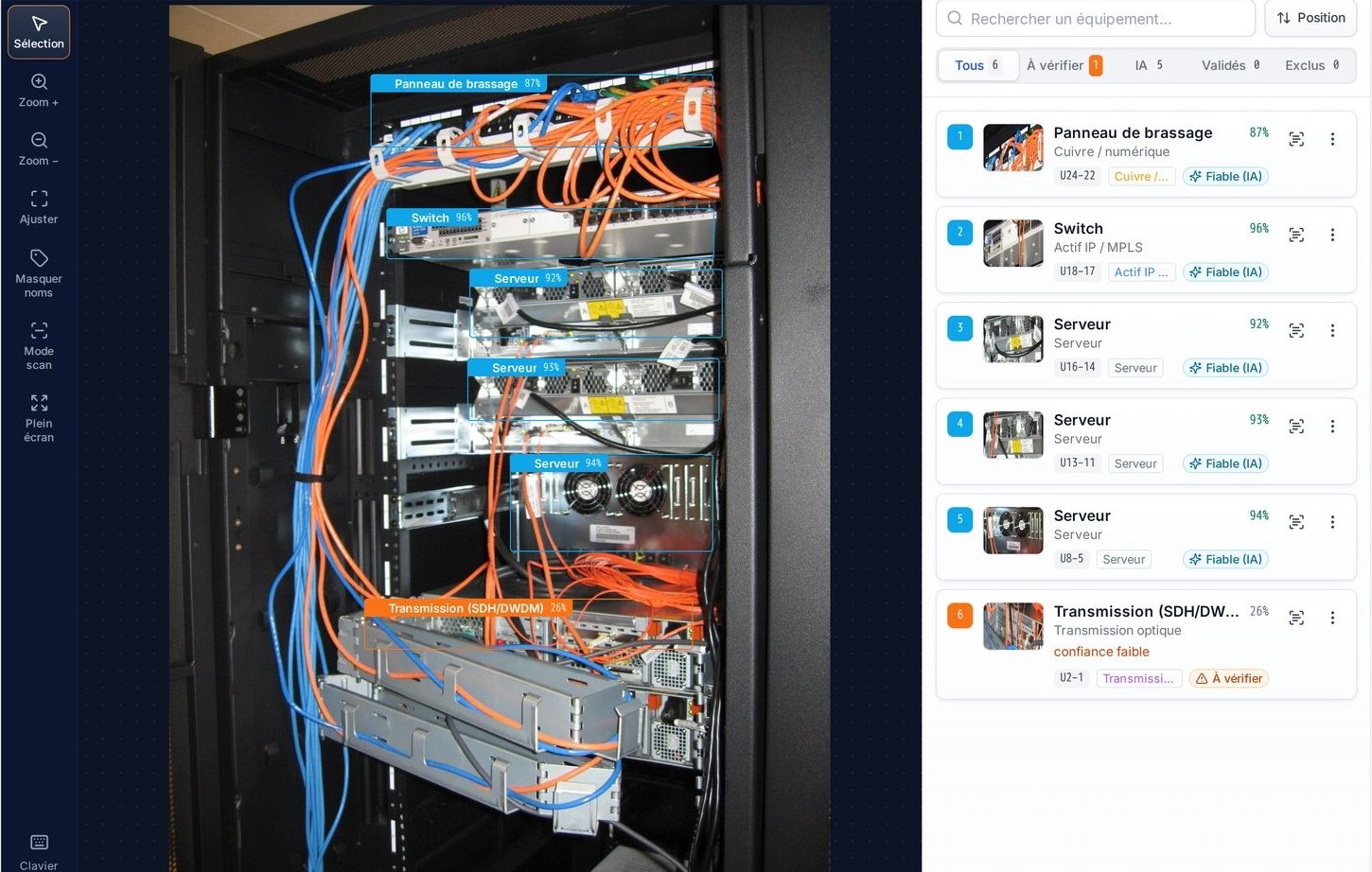
When the platform hesitates between two types, it does not choose silently: the line goes to “to check”, with its reason. It is up to you to decide, with the photo in front of you, before sharing the survey.
Why the family matters as much as the type
In a survey, the exact type of a device is not always the most useful information. For a room manager, knowing that a rack contains mostly optics and few servers is often enough to plan an intervention or prepare a visit. The family gives this overall reading, even when the details remain to be confirmed.
The family also structures how exported documents are read. In the PowerPoint site report as in the CSV or Excel inventory, each device carries its category: racks can be sorted, counted and compared with one another. Someone who does not know the room quickly understands its composition.
Finally, the family helps spot inconsistencies. A power device surveyed at the top of a rack, or a server where an optical drawer is expected, catches the eye on the colored rack diagram. And if you compare the analysis with an export from your CMDB, matching is done by the model read, then by category: a correct family helps find the right line in the file.
What is not on the list
A rack also contains objects that the platform does not try to inventory: cables, loose labels, tools left behind, documents. They may hide part of a device, but they are not surveyed.
A device of a type not in the table will either be attached to the closest type or marked “to check”. In both cases, the decision is yours, and the photo stays next to each line so you can judge. The review method is detailed in Surveying a rack in five minutes with a photo.